Martia in
ChatGPT and Claude
If you already talk to ChatGPT or Claude day to day, you can connect Martia to them and ask about your money without opening the app. Answers are grounded in your real transactions, and the connection is read-only.
What the assistant can see
- Your accounts and their current balances
- Transactions, filtered by date, category or account
- Spending by category over a date range
- A monthly summary: income, expenses, net
- Net worth — balances and declared assets minus liabilities
What it cannot do
- It cannot change or delete anything in your account
- It cannot categorise a transaction or fix a description
- It cannot touch a budget or move any money
- It never sees your full account number — only the last four digits
Where your data goes
Worth knowing plainly: if you connect Martia to ChatGPT or Claude, your transactions reach that assistant so it can answer your question. That is a deliberate choice you make yourself, in the assistant's own settings.
You set the connection up through the normal Martia login and a consent screen — you never hand anyone a password or banking credentials.
Connecting in Claude
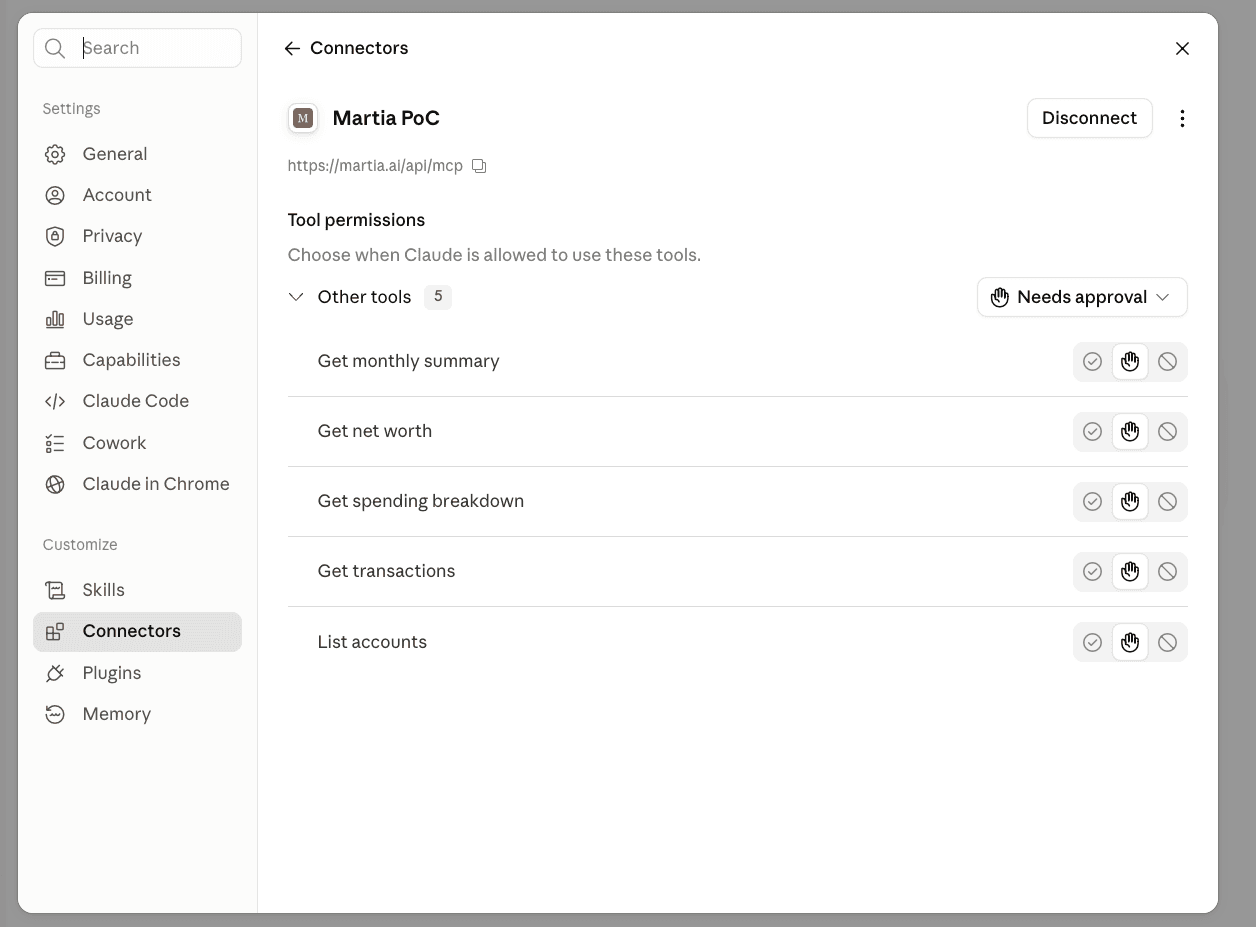
- On Pro or Max, open Customize > Connectors. On Team or Enterprise, open Organization settings > Connectors. You need an active Martia subscription and a connected bank.
- Choose to add a custom connector.
- Paste Martia's server address (below) and leave the OAuth fields empty.
- Log in to Martia and confirm the consent screen.
Martia's server address
https://martia.ai/api/mcp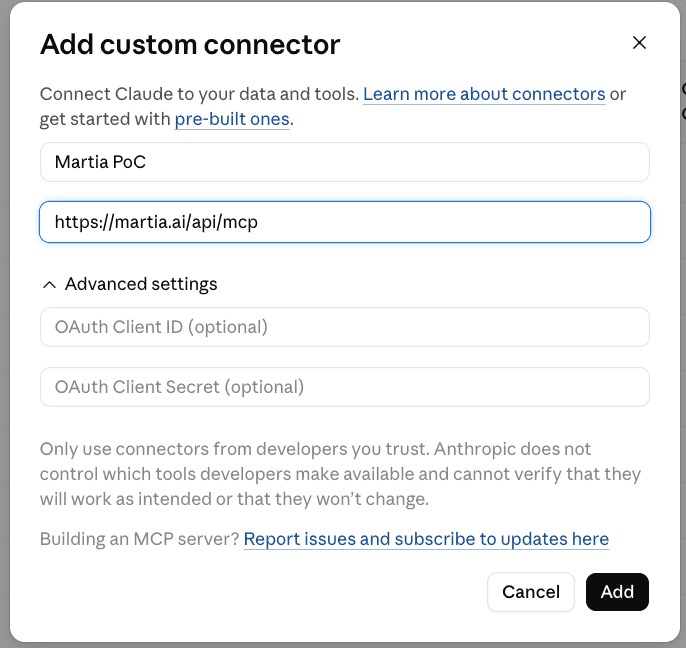
Connecting in ChatGPT
- Open https://chatgpt.com/plugins in your browser.
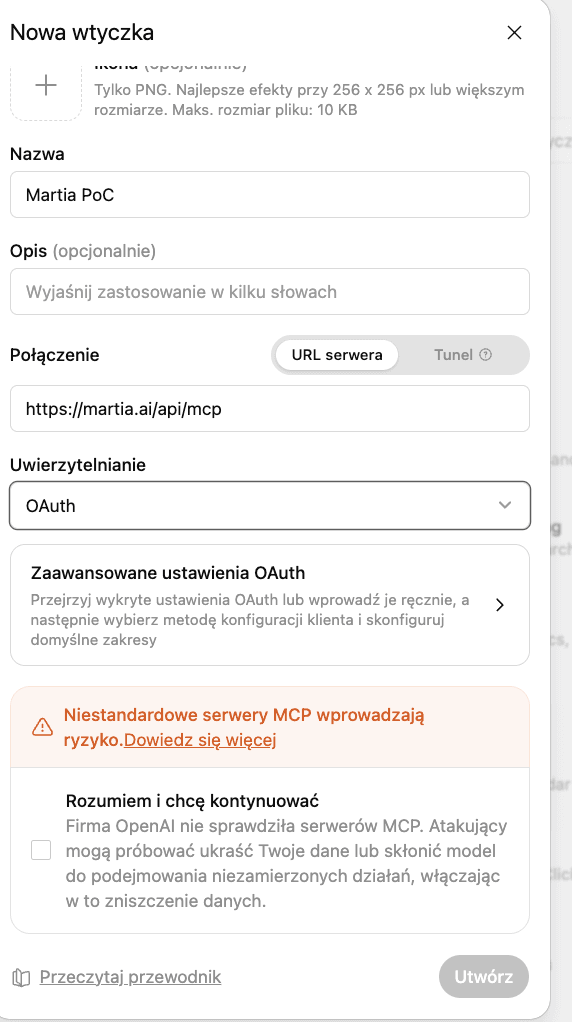
- Click the plus (+) or Add button and choose Add custom MCP server.
- Enter Martia as the name, https://martia.ai/api/mcp as the server URL and choose OAuth for authentication.
- Read the risk notice, confirm your consent and click Create as a plugin.
- If prompted, log in to Martia and approve access.
- Install the plugin, open a new chat in Work, type @ and choose Martia.
Any other agent that speaks MCP
Martia works with any agent or tool that supports remote MCP servers over Streamable HTTP with OAuth login and identifies itself with its own client metadata document (a Client ID Metadata Document, in the MCP spec) — Claude, Claude Code and ChatGPT all do. There is nothing to request from us first: no client ID, no client secret, no API key.
- Add a remote MCP server in your agent and paste Martia's server address (above) as its URL.
- Leave the client ID and client secret empty. The agent finds Martia's login service on its own and opens your browser.
- Log in to Martia and confirm the consent screen. The agent then lists Martia's five read-only tools.
- Transport Streamable HTTP over POST. The older SSE transport is not supported.
- Login OAuth, discovered automatically from the address below. The client ID is the https address of a client metadata document published by the agent's maker — there is no dynamic client registration. Then comes the usual browser login.
- Access Login discovery and the connector list work without a subscription. Reading financial data requires an active Martia subscription and a connected bank.
- Limits Transactions come in pages of 100 by default and 200 at most. A search phrase must contain between 2 and 100 characters.
Login discovery address
https://martia.ai/.well-known/oauth-protected-resource/api/mcpIf your agent can only register itself (dynamic client registration) and has no client metadata document, it cannot connect on its own. Email support@martia.ai and tell us which agent it is.
Disconnecting
In Martia, open Settings → Integrations and disconnect the assistant there; its access stops immediately. You can also disconnect in the assistant's settings, in the same place you added the connection. That removes Martia from the assistant, so it should stop initiating calls, but access tokens already issued to it are not revoked at that moment and may remain usable until they expire. Data already sent remains subject to the assistant provider's terms. You can disconnect whenever you like, without contacting us.
Something did not work, or you would rather ask a person? This guide has its own thread on the forum. Open the thread →